
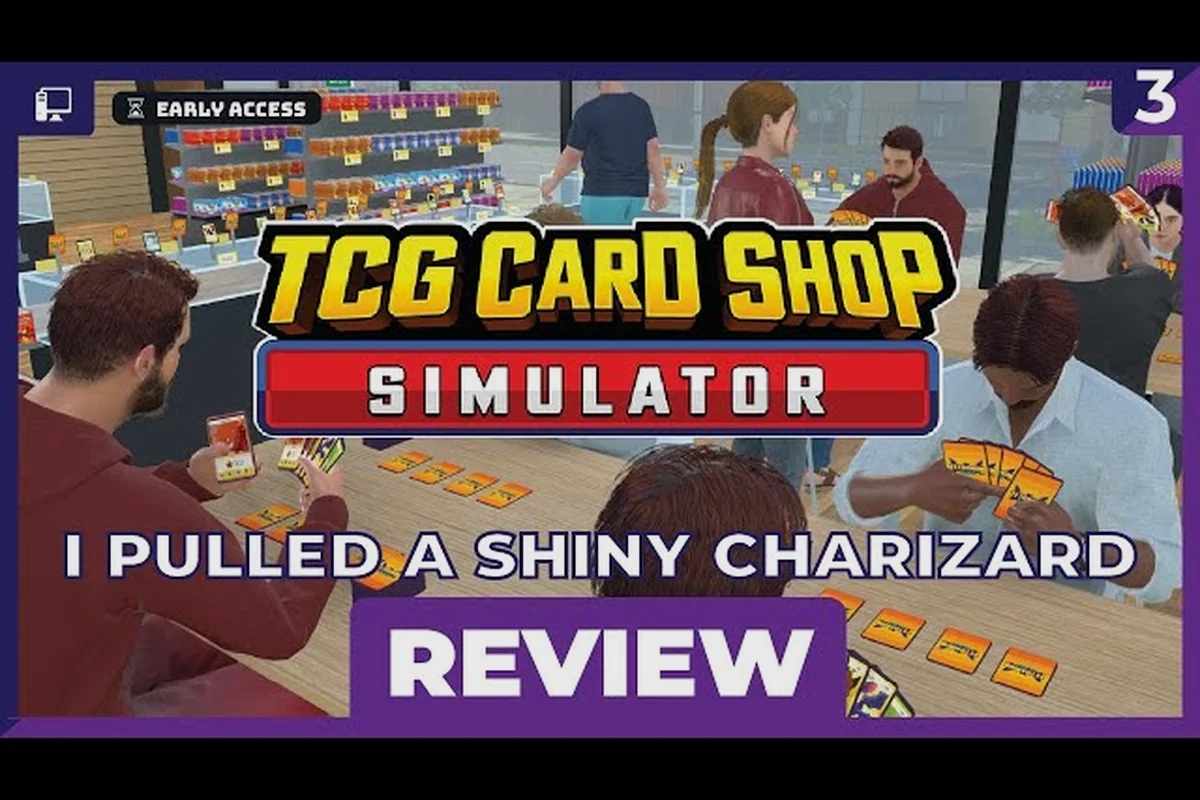
The TCG Card Shop Simulator reviews app is the in-game tablet that tells you how your store is performing, and learning to read it separates a struggling clerk from a five-star owner. Every shift you ring up a customer, the reviews app quietly logs your shop score, flags trending cards, and notes which items are flying off the shelves. If you have ever opened a daily report and wondered why your score dropped, this guide walks through the data, the trends, and the design ideas that turn raw numbers into real profit.
Reading Your Shop Score in the Reviews App
The shop score is the single most important number on the reviews app dashboard. It blends customer satisfaction, pricing fairness, restock speed, and shop atmosphere into a 0-100 rating that updates after every transaction. When players first launch the game and check the tablet on the counter, they usually see a score hovering between 40 and 55, which is the starting baseline tied to your default floor plan and starter inventory.
The reviews app does not just show your overall rating; it breaks the score into four weighted pillars so you know exactly where to invest next. Community testing on the 1.0 build suggests the pillars are weighted roughly evenly, with small bonuses for hitting specific milestones. Here is how the four pillars stack up in practice:
| Pillar | What It Measures | Typical Starter Score | What Pushes It Up |
|---|---|---|---|
| Customer Satisfaction | Queue time, item availability, price acceptance | 45-55 | More registers, restocked shelves, friendlier prices |
| Product Variety | Distinct item types in stock, sealed vs singles mix | 30-40 | Wider booster selection, sleeves, deck boxes, playmats |
| Store Atmosphere | Floor plan flow, lighting, decor, music | 50-60 | RENO BIGG upgrades, open sightlines, themed zones |
| Pricing Fairness | Markup vs market price from the TCG Price app | 40-50 | Closer-to-Tetramon-market pricing, bulk discounts |
Once you understand which pillar is dragging your overall rating down, the rest of the reviews app starts to make sense. A low Product Variety score tells you the trend tracking tab is about to flag under-stocked categories. A low Customer Satisfaction score usually means the popular items section is going to recommend items you are missing entirely.
How the Daily Report Roll-Up Works
At the end of every in-game day, the reviews app generates a summary card that breaks down the previous shift. The card shows total customers served, average wait time, top-selling category, and a delta on your overall shop score. According to the official Steam page, the shop holds up to 28 customers at once, and the report scales with that ceiling because busier shifts produce more granular data.
A common new-player mistake is to ignore the report and just head straight into the next day's ordering cycle. Players who build the habit of reading the delta first tend to make smarter stock decisions, because the app tells them whether the score moved up because of a pricing tweak, a new shelf layout, or a lucky spike in popular card demand. Treating the report as a punch list is the fastest way to climb from a 50 score to a 90+ score within the first in-game week.
Tracking Trends and Popular Items With the App
The trend tracking section is where the reviews app earns its keep. It pulls from the previous shift's transaction log and groups sales into rising, steady, and falling buckets across booster packs, Battle Decks, single cards, and accessories. The data refreshes each morning, so the app essentially functions as a daily market report for your own store.
What makes the trend tracker especially powerful is how it cross-references with the TCG Price app. When a booster type is trending upward, the reviews app will flag it and also surface the current Tetramon market price, which lets you decide whether to mark up or hold steady. Here is a simplified look at how the three trend states translate into action:
| Trend State | What the App Shows | Recommended Action |
|---|---|---|
| Rising | Up arrow, +20% or more vs 7-day average | Order more, hold price or raise 5-10% |
| Steady | Flat line, within ±5% of baseline | Keep current order size, monitor |
| Falling | Down arrow, -15% or worse vs baseline | Reduce order size, run a clearance promo |
For a deeper look at how individual card values move over time, the holo cards breakdown covers rarity tiers and grading multipliers that interact directly with the trend data you see in the reviews app.
Spotting Categories You Are Missing Entirely
A subtle but critical feature of the trend tracker is the "missing category" alert. If customers have been asking for sleeves, deck boxes, or playmats and you have none stocked, the reviews app logs the request and surfaces it in the next morning's report. Players who act on these alerts usually see their shop score jump 3-5 points the following day, because variety is one of the four weighted pillars and the app is essentially telling you where the easy gains are.
Shelf Capacity, Stocking, and Design Ideas Backed by the App
The reviews app does not display shelf capacity directly, but it tells you when you are close to hitting it. Once a shelf reaches roughly 85% full, the app starts flagging a "restock soon" warning on the daily report, and once it crosses 95% the warning escalates to "overflow risk." Overflow matters because items placed on a full shelf stop contributing to the Customer Satisfaction pillar, even if they technically exist in your inventory.
The official game page confirms the collection spans 4,436 cards, which is far more than any starter shelf can display. That gap is exactly why shelf capacity planning is one of the most common questions on the Steam discussions hub. Players who treat capacity as a soft cap rather than a hard limit tend to see their sales flatten, while players who actively rotate inventory keep a steady stream of fresh stock on the floor.
Here is a practical comparison of the main storage surfaces in the base game, based on community testing reported by players:
| Surface | Best For | Approx Capacity | Tips From Players |
|---|---|---|---|
| Wall Shelves | Booster packs, Battle Decks | 12-18 items per shelf | Group by set, not by price tier |
| Counter Display | High-margin singles, holos | 6-10 items | Refresh daily, front-facing only |
| Floor Rack | Sleeves, deck boxes, playmats | 20-30 items | Lowest shelf gets best traffic |
| Storage Room | Bulk singles, overflow boxes | 80-120 items | Use the Stock Order app to cycle |
When the reviews app flags overflow on a wall shelf, the fastest fix is usually to move slower-moving bulk boxes into the storage room and pull fresh boosters onto the wall. This kind of rotation keeps the Customer Satisfaction pillar high because customers see full shelves without you actually buying more stock.
Shop Design Ideas That Move the Score
Shop design ideas flow naturally from reading the reviews app for a few in-game days, but a few patterns keep showing up in player reports. Open sightlines from the door to the register cut perceived wait time, which lifts the Customer Satisfaction pillar even before you add another clerk. Themed zones that group all Tetramon product in one area and all accessories in another make the Product Variety pillar easier to read, because the app can attribute sales to a specific zone and reward you for stocking it fully.
The RENO BIGG app is the in-game tool for executing these shop design ideas. Players who invest early in a wider front entrance, a brighter overhead light, and a dedicated play table corner tend to see the Store Atmosphere pillar climb into the 70s within the first few shifts. For a step-by-step walkthrough of layout choices that pair well with the reviews app data, the shop layout guide covers expansion unlocks and shelf placement in more depth.
Turning Reviews App Data Into Daily Profit
Reading the reviews app once a day is good, but the real profit comes from building a small routine around it. The most effective routine that experienced players describe on the official TCG Card Shop Simulator Steam page follows a simple three-step cycle each morning, and it works whether you are on day 3 or day 30 of a save file.
| Step | Time In-Game | What You Do | Why It Matters |
|---|---|---|---|
| 1. Read the daily report | 1-2 minutes | Note score delta, top seller, missing category | Surfaces the day's biggest lever |
| 2. Adjust the Stock Order | 3-5 minutes | Reorder trending items, cut falling items | Locks in trend gains before competitors move |
| 3. Tweak the floor | 2-3 minutes | Rotate shelves, restock counters, recheck sightlines | Keeps the four pillars in balance |
Players who follow this cycle report climbing from a starting score in the 40s to a stable 85-90 range within the first in-game week, and a 90+ score within two weeks. The cycle works because each step directly addresses one of the four pillars the reviews app measures, so you are never guessing where your next point is coming from.
Pricing Strategy From the Reviews App
The pricing fairness pillar is where most new clerks leave money on the table. The reviews app shows your average markup versus the TCG Price app baseline, and it labels anything above a 25% markup as "premium" and anything below a 5% markup as "loss leader." Players who price right at the 10-15% markup band tend to hold the highest Customer Satisfaction scores without sacrificing margin, because customers tolerate a small premium if the shelves are full and the queue is short.
A second pricing lever that the reviews app surfaces is the bulk discount toggle. When you offer a small bulk discount on sleeves or deck boxes, the app logs higher units per transaction and rewards your Product Variety pillar. According to players sharing results on the TCG Card Shop Simulator 1.0 launch trailer discussion, bulk discounts on accessories are one of the most reliable ways to bump the overall score by 2-3 points per shift.
When to Ignore the App
The reviews app is a guide, not a boss. There are moments when ignoring its recommendation is the right call, such as when an event is about to spike demand for a specific booster or when a new expansion drops and the TCG Price app has not caught up yet. Players who learn to read the reviews app as a trend snapshot rather than a strict rule tend to make better long-term decisions, because they balance app data with their own knowledge of upcoming events and seasonal swings.
Advanced Reviews App Tactics for High Scores
Once your shop is comfortably above an 85 score, the reviews app starts offering finer-grained data that lets you push toward the 95+ range. The advanced tab includes a per-hour heatmap of customer flow, a per-clerk satisfaction breakdown, and a price elasticity curve for your top 20 items. None of this data is hidden, but it does require a stable shop and a few weeks of in-game time before the patterns become useful.
The per-hour heatmap is especially valuable for shift planning, because it shows exactly when the floor is busiest. Players who align their GO Recruit staffing with the heatmap peaks tend to see the Customer Satisfaction pillar climb another 2-3 points, simply because queues clear faster during the rush hours. The per-clerk breakdown is the second most useful view, because it shows which employee is generating the most positive customer interactions and which one is slowing down the line.
Pairing the Reviews App With Other In-Game Tools
The reviews app is most powerful when paired with the rest of the in-game tablet suite. The Stock Order app handles purchasing, the TCG Price app handles market data, the Cardinal's Grading app handles card condition, and the MY DIY app handles custom accessories. Each of these feeds data back into the reviews app, so a coordinated morning routine that touches all five apps tends to produce the cleanest score gains.
| App | Primary Use | Feeds Back Into Reviews App Pillar |
|---|---|---|
| Reviews App | Overall shop score, trend data | All four pillars |
| Stock Order | Purchasing, bulk orders | Customer Satisfaction, Product Variety |
| TCG Price | Market price lookup | Pricing Fairness |
| Cardinal's Grading | Card condition, grading | Pricing Fairness, Product Variety |
| MY DIY | Custom sleeves, deck boxes | Product Variety, Store Atmosphere |
| RENO BIGG | Floor plan, decor, lighting | Store Atmosphere |
| GO Recruit | Employee hiring and shifts | Customer Satisfaction |
A player who runs all seven apps in a coordinated morning routine is essentially running a data-driven shop, and the reviews app becomes the dashboard that confirms whether the routine is working. For a closer look at how the grading app interacts with the pricing data the reviews app surfaces, the card display guide breaks down how singles pricing works alongside bulk inventory.
Reading the Score Like a Five-Star Owner
A 95+ score in TCG Card Shop Simulator is achievable, but it requires treating the reviews app as a daily feedback loop rather than a one-time check. Five-star owners tend to share a few habits in player discussions: they read the report before placing the day's order, they adjust the floor plan weekly rather than daily, and they price within the 10-15% markup band unless an event justifies a temporary spike. Those three habits, repeated for a few in-game weeks, are what separate a 70-score shop from a 95-score shop.
Frequently Asked Questions
What does the TCG Card Shop Simulator reviews app actually measure?
The reviews app measures four weighted pillars: Customer Satisfaction, Product Variety, Store Atmosphere, and Pricing Fairness. Each pillar pulls from transaction data, shelf state, and pricing decisions, then rolls up into a single 0-100 shop score that updates after every shift and is reported on the daily summary card.
How do I raise my review score fast in the first week?
Focus on three moves reported by players: keep the shelves above 85% full, price within the 10-15% markup band against the TCG Price app, and open a clear sightline from the door to the register. These moves lift the Customer Satisfaction and Pricing Fairness pillars quickly because they are visible in the very first daily report.
Can the reviews app tell me which cards are trending?
Yes. The trend tracking tab groups cards and product types into rising, steady, and falling buckets based on the previous shift's sales. Rising items show a green up arrow, falling items show a red down arrow, and the app pairs each trend with the current Tetramon market price so you can decide whether to hold, raise, or discount.
Does shelf capacity show up in the reviews app?
Not as a number, but the app issues "restock soon" warnings once a shelf passes about 85% full and "overflow risk" alerts above 95%. Items on an overflowed shelf stop contributing to the Customer Satisfaction pillar, so rotating stock into the storage room is the standard fix.
Should I follow the reviews app or the TCG Price app when prices conflict?
Use the TCG Price app as the baseline and the reviews app as the trend signal. If the price app shows a stable market but the reviews app flags a rising trend, hold the current price and let volume drive the score. If the price app shows a spike and the reviews app shows flat demand, follow the price app and raise your markup to capture margin.